RightCapital’s Top Product Features & Enhancements of 2023
January 3, 2024


Key Takeaways
- Cash Flow Maps allow advisors to visualize a client's inflows and outflows in a clear, year-by-year waterfall view.
- Improved task management makes it easier to assign action items, set due dates, and keep clients moving forward on their to-do lists between meetings.
- Enhancements to the secure document Vault make it easier to organize, store, and find important files, keeping advisors and clients on the same page.
Looking for the most recent updates? Here are RightCapital’s Most Exciting Enhancements in 2025.
Happy New Year to you and yours! To fully focus on 2024 and all the exciting enhancements to come to RightCapital, we feel the first step is to reflect thoughtfully upon last year’s updates. In 2023, there were more than 60 updates to our financial planning software, including the giant, game-changing ones below, that help advisors:
1. Visualize cash inflows and outflows with Cash Flow Maps
Advisors can now easily illustrate a client’s cash inflows and outflows in easy-to-understand data visualizations with the introduction of RightCapital’s Cash Flow Maps in April 2023. Demonstrate where cash is coming from and where it’s going using a “Waterfall” horizontal Sankey chart—where cash flows from left to right—and “Breakdown”—a vertical flow chart that you can click into for more detail.
Here’s a quick run-through of Cash Flow Maps:
When you go to the Retirement Tab and click Cash Flows, you'll see a "Waterfall" diagram that illustrates your client's cash inflows on the left side and outflows as you move to the right.
From expenses like housing and insurance premiums to goals like saving for a big vacation to taxes, your clients can visualize where their cash is coming from and where it's going.
The size of the individual flow indicates the relative dollar amount, so your client can easily see the big-ticket items that have a meaningful impact. Extra cash flows or negative cash flows will show at the bottom.
You can show the Cash Flow Map for a specific year by moving the timeline bar at the top, and select Current or Proposed plans as well as various cash flow scenarios, if you have them enabled in your plan settings.
The second cash flow map is called "Breakdown," which you can see here. The breakdown diagram has the same information as the Waterfall diagram but provides a bit more detail by drilling down into each item.
Lastly, you can generate these Cash Flow Maps as part of the PDF report. Thanks for watching this walkthrough video, and let us know what you think.
2. Stay organized with a major Tasks enhancement
Advisors can stay more organized while also creating opportunities for client engagement with September’s overhaul of the Tasks module. The new “Board View” allows for easy dragging and dropping of tasks to mark them as “Completed”. Advisors can assign frequencies to recurring tasks, offering improved scheduling capabilities. If an advisor would like to make a particular task advisor-facing only, there is now a designation to “Hide” tasks.
3. Maintain order of shared documents with Vault updates
Advisors can manage Client Vaults in one centralized location within the Advisor Portal. It’s now easier to access and take action on client documents and folders without clicking into individual plans. With “Shared Documents,” advisors can save time by sharing documents or folders with multiple clients and/or client groups.
Save even more time with new Vault templates, found in the Advisor Portal > Gear Icon > Templates where firms and advisors can create standard folder structures for multiple clients and/or specific client groups. To enhance clarity, files uploaded by the advisor are now clearly designated with a small “A” in the corner of the document and the Vault (now represented by the folder icon) is now part of the main navigation menu.
4. Help clients track spending in the updated Budget module
If your subscription includes account aggregation and clients have linked bank and credit card accounts, they can easily manage their expenses by categorizing individual transactions, tracking current spend vs. goals overall or by category, viewing spend over specified time periods, and in detail by transaction. Clients can analyze where their money is going with a variety of new visual charts. Exclude certain bank and credit card accounts easily from the budget analysis without removing them from the financial plan.
5. Give clients access on the go with mobile app updates
As other popular budgeting apps are shutting down, the RightCapital mobile app remains the only true companion mobile app from a financial planning software. The app had a significant makeover last spring, with redesigns of the Dashboard, Budget, Tasks, and Asset Allocation modules as well as the addition of the Vault secure document storage.
Here’s a quick overview of the mobile app functionality:
We are thrilled to announce the new RightCapital mobile app where clients can view their entire financial lives on the go.
Let's start with our redesigned dashboard with net worth, probability of success, and accounts that your clients can tap into for more details. Important action items such as unlinked accounts and overdue tasks are front-and-center so your clients can take action.
On the Budget tab, clients can stay on top of their spending and see how they are tracking against their budget goals for the month. Clients can link credit cards and bank accounts, edit transaction names and categories, and view their expenses for different periods of time. They can also search for transactions and set budgets for new categories, all within the app.
Using the Tasks tab, clients can create and assign tasks to themselves, their partner, and their advisor. Clients can also confirm completion of tasks or delete tasks they've created.
Our popular Vault storage feature is now available on mobile. Clients can easily snap photos of documents or upload files to securely share them with advisors. They can also store files for their own use.
Lastly, on the Investment tab, clients can see the overall asset allocation of their holdings or tap into individual accounts.
Schedule your personalized demo today to learn how RightCapital's mobile app can enhance the value of your financial planning services.
6. Illustrate equity compensation in new Stock Plans module
With the new-in-December Stock Plans module (under the “More” menu, if you haven’t seen it yet), advisors can illustrate the client’s existing equity compensation (Summary tab); review key details and the status of Grants (Grants tab); create a proposed stock plan strategy and visually compare it to the current strategy (Analysis tab); and visualize the proposed strategy’s projected summary by shares, value, cash flow, and taxes (Details tab). You can now adjust the liquidation strategy to model selling all shares in a specific year or over a number of years. The stock plan proposal can be incorporated into the Retirement, Life Insurance, and Disability Insurance analyses.
Here’s a quick review of the Stock Plans module:
Hi, my name is Alexus Rogers, and I'm beyond excited to share with you the brand new Stock Plans module. The Stock Plans module is available for all subscribers. It can be found under the more menu represented by the three dots in the upper right hand corner.
The Summary tab helps you visualize your client's existing equity compensation. In this chart, you can see the value of vested and unvested shares by grant type for all stock plans or drill into focus on a specific plan.
Clicking the dropdown brings you to the equity compensation share vesting chart. Here you can see a summary of the number of shares that have vested for each year and quickly identify the year all shares will be vested.
Use the Grants tab to see a detailed overview of the stock plans that the client has today. As you can see, this table shows key items such as the grant details, shares vested and unexercised, vested and held, and more. Review these details by the number of shares or the value.
Switching over to the Analysis tab, here is where you can curate a proposed stock plan strategy and visualize the comparison to the current strategy. Navigating to the action items, here is where you can demonstrate different exercise and liquidation strategies. By clicking into the edit button, we can include additional action items for us to propose changes to.
You can also propose changes at the individual grant level by enabling the custom grant strategy. For example, you can adjust the liquidation strategy to model selling shares in a specific year or over a number of years using our new liquidation option.
Once you've curated your proposed strategy, illustrate the comparison of the current strategy and the proposed strategy on the charts and the dropdown available. Here we can view the difference between invested assets, taxes, percentage of the portfolio that is made up of stock plans, and also the stock plan cash flow analysis.
Switching over to the Details tab here, we can view the breakdown of your proposed strategy's projections by looking at the summary by shares, summary by value, cashflow, and tax tables.
We can also incorporate your stock plan proposal in the Retirement, Life Insurance, and Disability Insurance modules. Here's an example within the Retirement module. We can also include the stock plans module as part of the PDF report or give clients access to the module from within the Planning Access tab.
Thank you for joining us for our overview of the new stock plans module within RightCapital. We can't wait to hear what you think!
7. Remember important details with a revamp of Notes
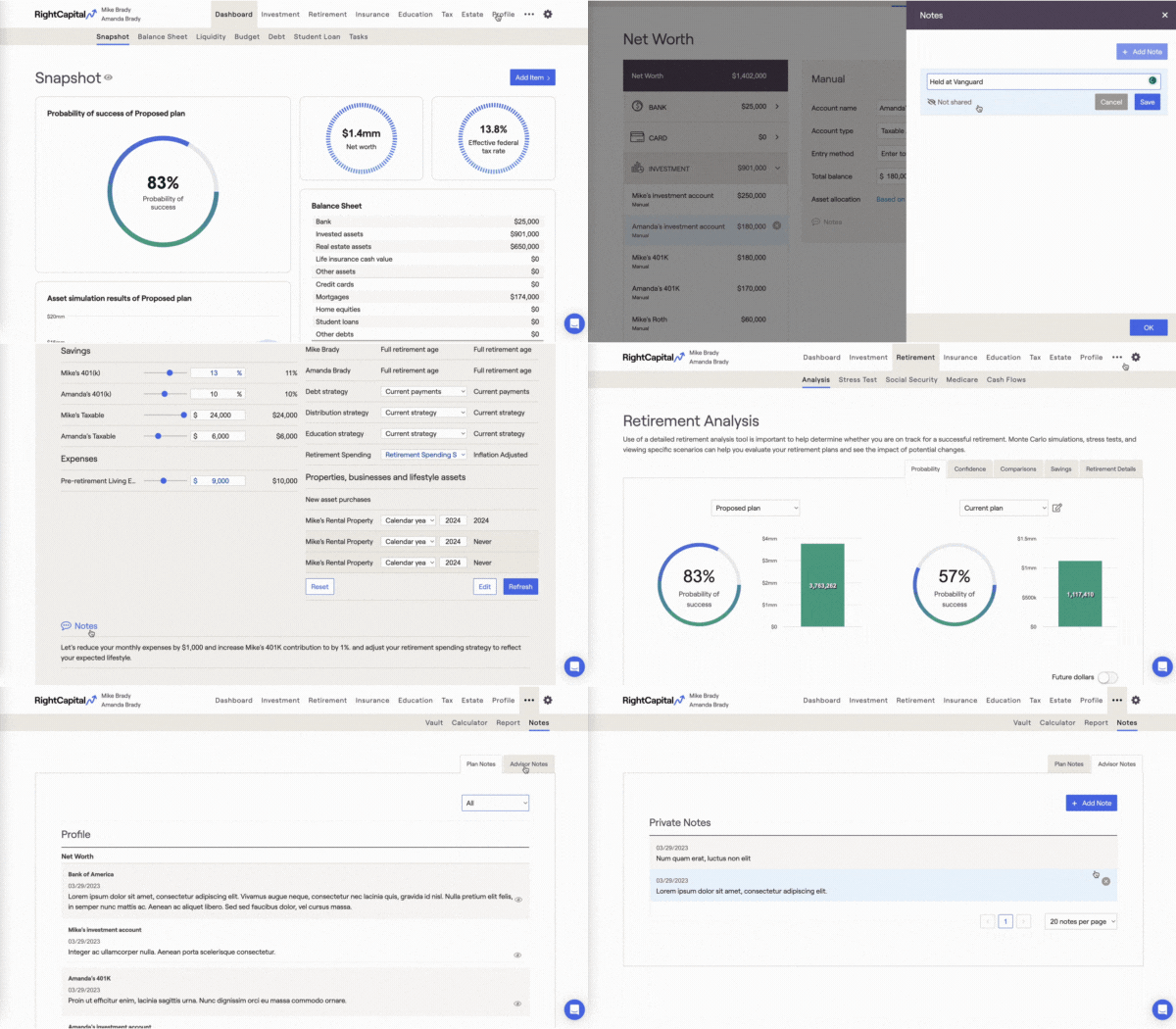
Advisors can more easily account for important details with the revamped Notes feature, available on profile cards, accounts, and action items sections. Control the privacy of individual notes depending on your preference for client visibility. Enhance your organization by viewing all notes in a single location on the new Notes tab. Benefit from timestamps indicating the creation dates of the notes and the ability to print “shared” notes directly within the PDF report.
8. Accommodate tax planning for clients who are "non-married filing single"
By popular demand, advisors can now account for the tax-filing statuses of both “Married Filing Separately” and “Non-Married Filing Single”. Changing the filing status will break out relevant calculations and inputs for the client and the co-client in several planning modules and allow flexibility in viewing tax details.
9. Save time with new and enhanced integration partnerships
This year’s new integration partners included Apex Fintech Solutions, Investigo: Broadridge Wealth, PreciseFP, and RBC Clearing & Custody. We’ve also expanded integrations with our previous partners SEI, Black Diamond, and Advyzon.
10. Demonstrate SAVE Plan benefits in Student Loan module
When the Department of Education implemented critical benefits for the Saving on a Valuable Education (SAVE) plan while phasing out the REPAYE plan, RightCapital got ready to reflect the updates. Changes to our Student Loan module this year included: exclusion of spousal income in consideration for payment calculations in certain situations; increase in income exemption amount; no accrual of unpaid interest; decrease in payments starting in July 2024 based on percentage of discretionary income that borrowers with undergraduate loans are required to pay; a weighted average for payments for borrowers with both undergraduate and graduate loans; a new field on the Student Loan card to capture the original loan amount; and REPAYE references renamed to SAVE.
Unrelated to the SAVE Plan, additional updates were made to allow advisors to capture previously accumulated months of progress toward Income-Driven Repayment (IDR) loan forgiveness, more easily incorporate client progress in working toward Public Service Loan Forgiveness (PSLF), and see the preferred payment timing when reviewing the “Monthly” payments schedule.
If you’d like to learn more about any of these enhancements or smaller updates such as return model assumptions, additional flexibility for firms, and PDF report improvements, visit this page or schedule a demo below.
For more detail on these enhancements and more, check out our Q1, Q2, and Q3 blog posts.
:format(jpeg))
:format(jpeg))
:format(jpeg))
:format(jpeg))
:format(jpeg))
:format(jpeg))